This article has been rewritten and reorganized using artificial intelligence (AI) based on referenced technical documentation. The purpose is to present the content in a clearer and more accessible manner. For technical clarifications or further verification, readers are advised to consult the original documentation or contact relevant technical personnel.
Have you ever found yourself digging through complicated Windows menus just to find a simple function? Or wished to allow only specific USB devices or Wi-Fi connections, but found the steps tedious and confusing? As a leader in industrial computing, the Advantech team understands users’ pain points. That’s why we have invested in developing the all-new “Windows Power Suite - OS Enhancement Utility,” making complex settings accessible with a single click. This tool helps enterprise users, system integrators, and field engineers easily manage system security, efficiency, and convenience!
OS Enhancement Utility: Making Windows Settings Ultra-Intuitive #
Windows 10/11 IoT Enterprise LTSC comes with many powerful features, but truly leveraging them often requires significant time for configuration. Advantech Power Suite consolidates these scattered settings, enabling you to handle the most common and critical system adjustments with a single tool!
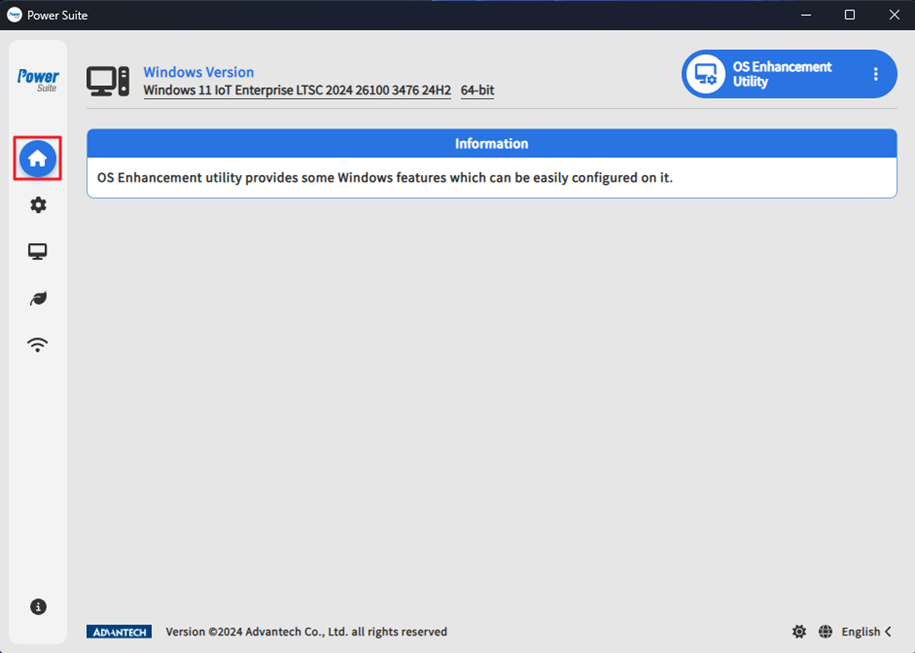
One-Stop Configuration: Simple and Efficient #
Adjust Your System in Seconds! #
Power Suite gives you a clear overview of all settings, from enabling touch screens and system sleep options to switching the blue screen of death (BSOD) to black for easier onsite management—all done with one click.
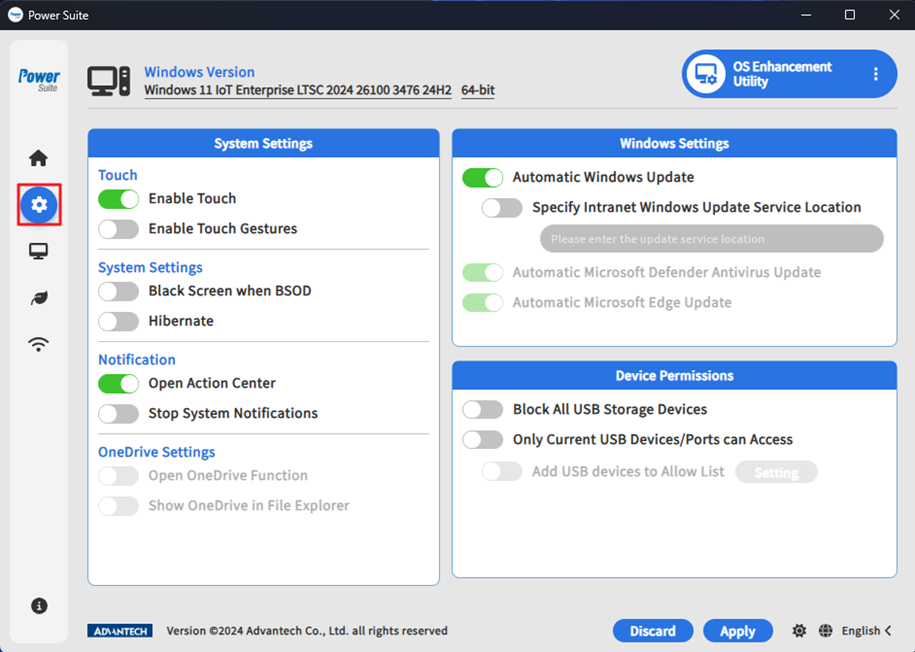
Overview of Common Settings: #
- Touch Functions: Enable or disable touch screens and gestures, supporting capacitive touch devices.
- System Display: Automatically switch to a black screen upon BSOD to prevent information leakage.
- Sleep Options: Easily configure whether the sleep function appears in the shutdown menu.
- Notification Management: One-click to enable or disable Action Center or system notifications, creating a focused environment.
- OneDrive Management: Decide whether to display OneDrive and enable synchronization.
- Windows Update: Choose between automatic updates or specify an internal network update source. Defender and Edge browser updates can also be configured independently for greater flexibility and security.
- Device Access Control: Completely block USB storage devices, or allow only specific USB devices for enhanced enterprise cybersecurity!
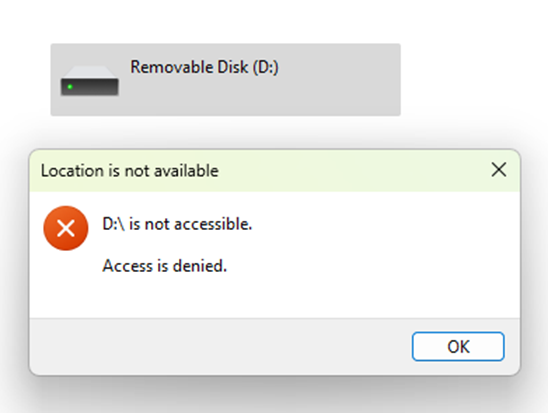
[Pro Tip] How to Add Allowed USB Devices? #
- Enable “Add USB Device to Allow List.”
- Click “Settings” to open the device menu.
- Check the required device IDs; the status will change from “Allow” to “Allowed.”
- Click “Save” to close the dialog box.
- Finally, click “Apply” and restart the device for the changes to take effect!
Friendly reminder: Some devices (such as keyboards) may require adding multiple Class IDs (e.g., HID) to function properly!
Kiosk Mode: Keep Devices Focused on a Single Task #
Want to turn a Windows device into a demo station, information kiosk, or POS terminal? Kiosk Mode is your best assistant!
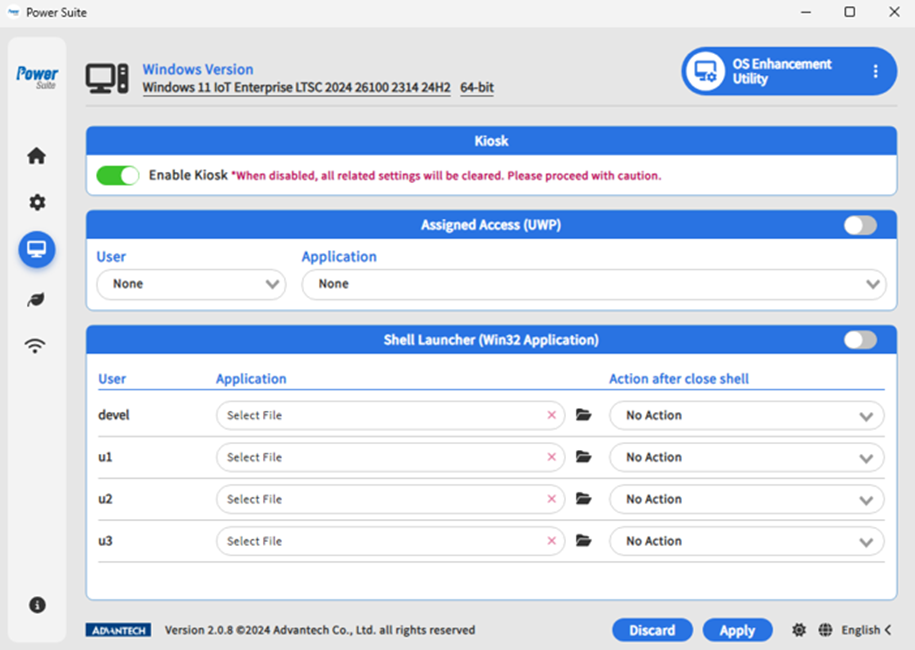
- One-Click Kiosk Activation: Instantly lock the device to a specific application.
- UWP Assigned Access: Automatically launch a specific UWP application when a designated user logs in.
- Win32 Shell Launcher: Specify a Win32 application to launch upon login, with options to auto shut down, reboot, or restart the shell after exit—offering flexible management for self-service terminals!

New Energy-Saving Tool: Intelligent Power Management #
Sustainability and carbon reduction are essential for modern enterprises. Power Suite centralizes all energy management settings, helping you optimize power consumption with one click, extend device lifespan, and reduce your carbon footprint!
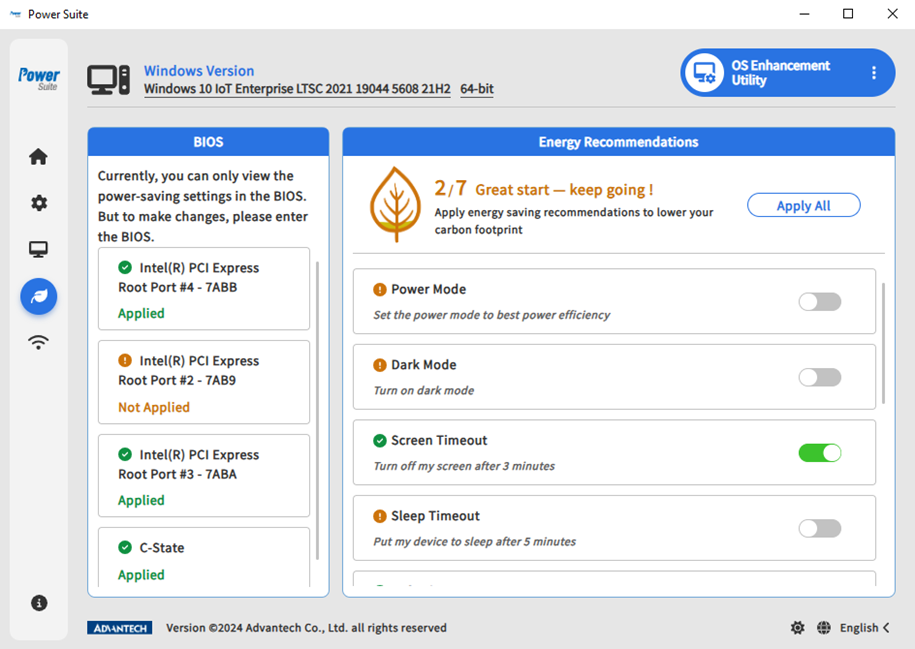
- BIOS Power Saving Suggestions: Instantly display the current status of BIOS power-saving settings (currently supported by select Intel CPUs).
- One-Click Energy Recommendations: Apply all suggested power-saving parameters by clicking “Apply All,” or toggle them individually as needed.
- Advantech SUSI API: Integrates with Advantech’s SUSI software platform to access more detailed energy status information.
Wi-Fi Filtering: Connect Only to Authorized Networks #
Unintended connections to unknown Wi-Fi networks are a major security risk for enterprises. With Power Suite’s Wi-Fi Filter feature, your devices can connect only to authorized networks—all other SSIDs are hidden!
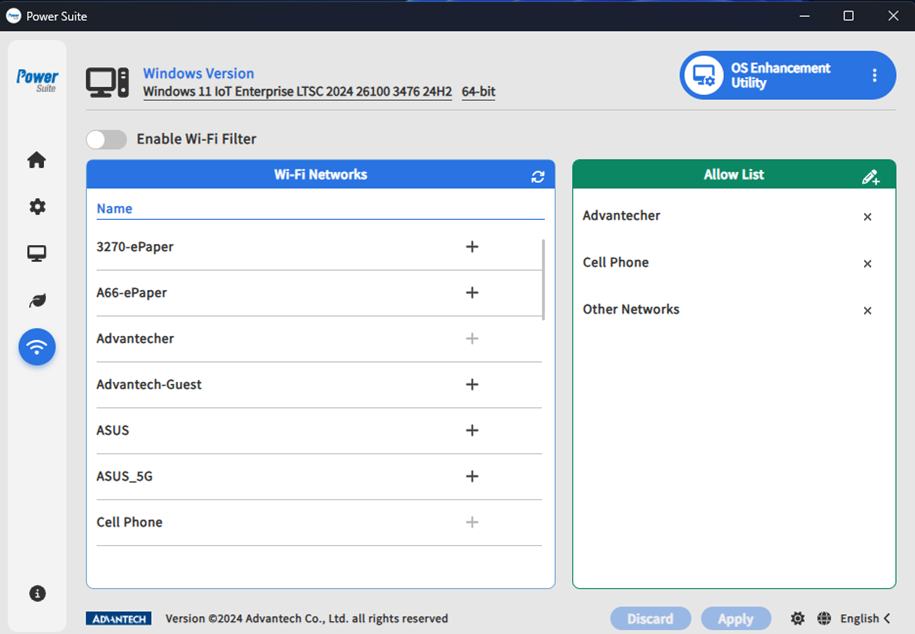
Three Steps to Secure Connectivity: #
- Enable Wi-Fi Filtering.
- From the list of available networks, add authorized SSIDs to the Allow List (manual entry supported).
- Click “Apply” to save the settings and easily block unauthorized connections.
Kindly note: SSIDs containing emojis or Unicode characters are automatically excluded to ensure internal network names remain secure and standardized.
Advantech Drives Continuous Innovation to Keep You Ahead! #
The Advantech team is committed not only to hardware but also to software innovation, creating intuitive system tools based on real user needs. The Power Suite OS Enhancement Utility enables centralized system management, cybersecurity protection, and energy optimization, greatly enhancing enterprise efficiency and safety.
We will continue to improve our products and plan to introduce advanced features such as AI-powered diagnostics, automated cybersecurity policy management, and cloud synchronization in the future—helping enterprises and partners move forward steadily in the digital transformation era.
Want to experience the efficiency and convenience of Power Suite? Contact your Advantech sales representative or dedicated technical consultant today, and let’s create a smarter, safer, and more sustainable new era of intelligent devices together!