This article has been rewritten and reorganized using artificial intelligence (AI) based on referenced technical documentation. The purpose is to present the content in a clearer and more accessible manner. For technical clarifications or further verification, readers are advised to consult the original documentation or contact relevant technical personnel.
Have you ever wondered how to make your Windows industrial control system more secure, automated, hacker-resistant, and foolproof? Today, let’s explore the latest experimental results from the Advantech engineering team—the Lockdown Utility within Windows Power Suite. How does this tool turn your IoT devices into vault-like fortresses while remaining user-friendly and intuitive? Let’s find out!
Why Do You Need the Lockdown Utility? Revealing New Market Demands! #
With the increasing prevalence of IoT applications such as smart manufacturing, self-service kiosks, and medical devices, Windows devices are often exposed in public areas or left unattended. Imagine: if someone accidentally misoperates the device, plugs in a USB drive, or if the system restarts abnormally, wouldn’t this create security vulnerabilities or risk data loss?
Although Microsoft has already built many powerful features into Windows 10/11 IoT Enterprise LTSC, the setup process is often daunting—the commands are numerous and complex, and even the DISM tool alone can discourage many users. This is where Advantech steps in! We’ve launched the “Power Suite” application, enabling you to manage advanced lockdown and protection features with a single click, turning everyone into a cybersecurity expert.
Complete Experiment Workflow: Step-by-Step to Professional Protection #
1. One-Click Activation of Lockdown Features #
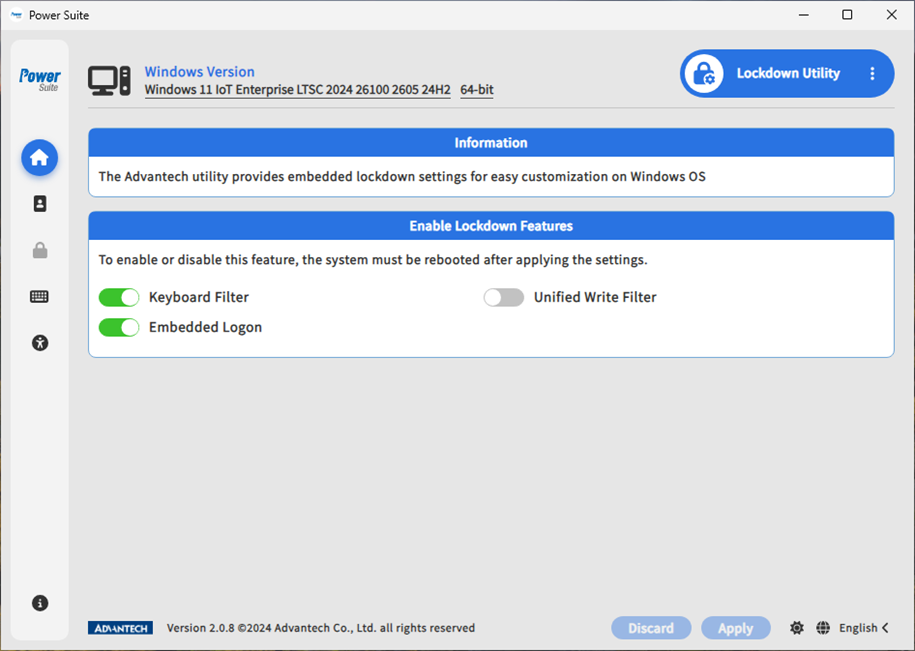
Simply enable “Enable Lockdown Features” in Power Suite to easily toggle various protection switches. No more command lines or DISM—every setting is clear at a glance, and you can activate any function with a simple switch!
- Tip: Make sure to turn on the corresponding feature switch before accessing related settings in the left menu!
2. Automatic Logon and Advanced Boot Options #
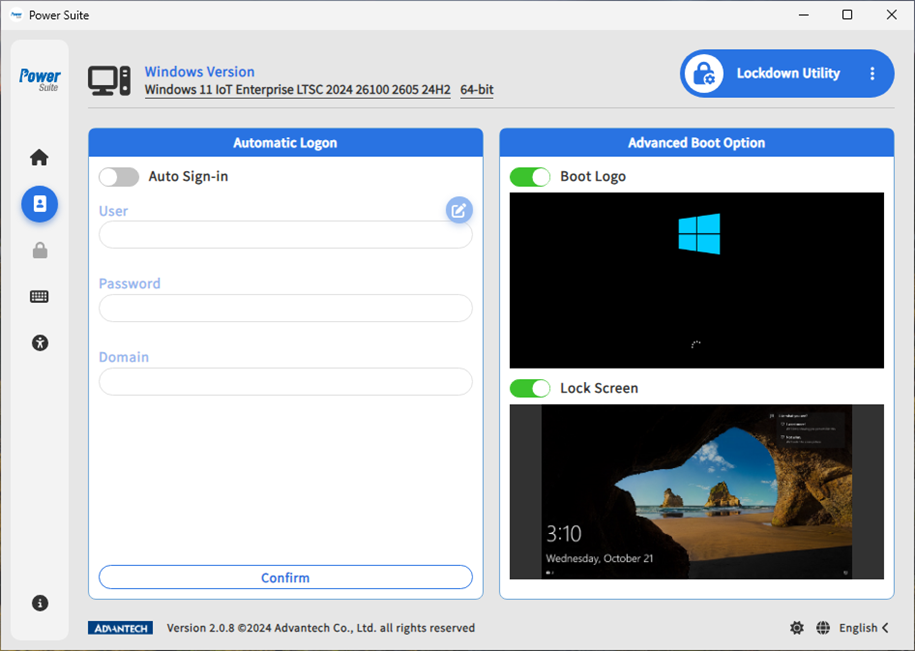
- Automatic Logon: Set up your account and password so the device logs in automatically on startup—ideal for unattended kiosks or public devices.
- Advanced Boot Options: Customize the boot screen, even hide the Microsoft logo and lock screen, making boot-up faster and more professional!
3. Unified Write Filter (UWF) — Data Protection and Zero-Risk System! #
UWF is a “read-only shield” designed by Windows specifically for industrial control and embedded devices. Once enabled, all changes are temporarily stored in a virtual overlay and automatically restored upon reboot—so even if infected or misoperated, you can instantly “go back in time”!
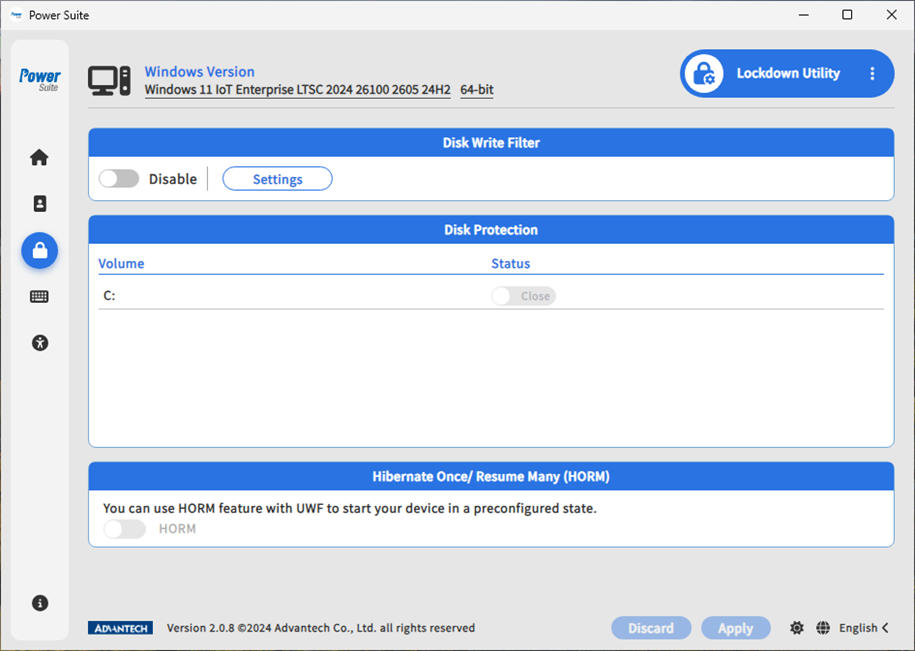
- Enable Disk Write Protection (Disk Write Filter): Makes the system disk read-only to prevent malware or accidental file deletion.
- Note: Please remove USB storage devices before enabling to avoid errors.
- Advanced Settings: Choose whether the overlay is stored in RAM or on disk, and exclude specific folders from protection as needed.
- Multi-Disk Protection: Configure protection for multiple disk partitions individually (external USB drives cannot be included).
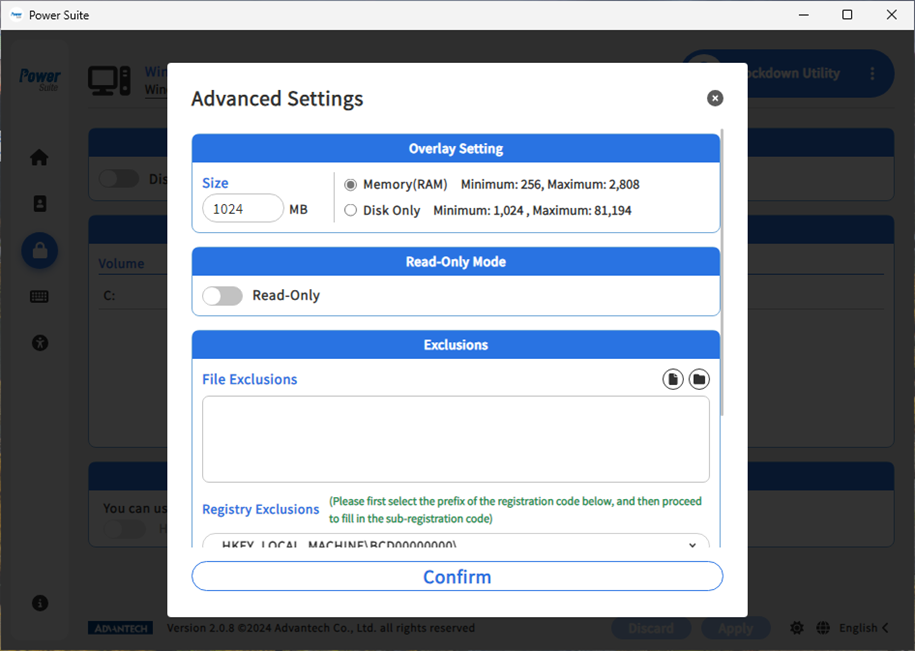
- Tip: If disk protection is enabled, be sure to disable it before making changes—otherwise, settings will not take effect.
HORM: The Ultimate “One-Click Restore” Feature #
HORM (Hibernate Once/Resume Many) allows the system to restore from the same “shielded” state every time it boots, so you don’t need to worry about sudden power loss or unexpected restarts!
- Before enabling:
- Turn on Hibernate functionality
- Enable UWF on all internal disk partitions
- Set Overlay to RAM mode
- Detailed explanation and setup steps
- Note: HORM support for UEFI devices requires Windows 10 IoT Enterprise version 1709 or above.
4. Keyboard Filter: Foolproof and Hacker-Resistant #
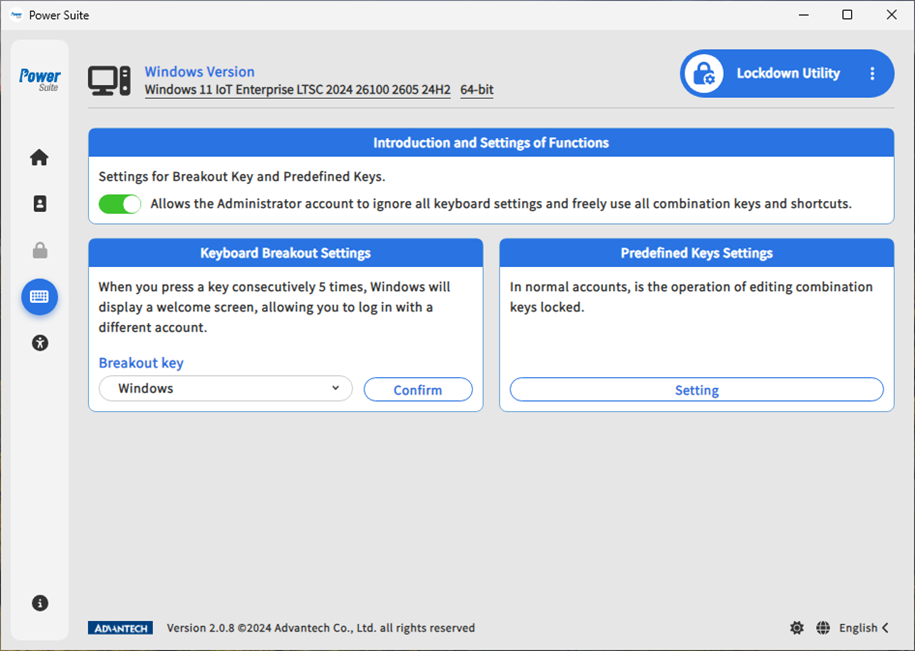
- Set a “Breakout Key”—press the custom key five times to exit lockdown mode, making account switching super convenient.
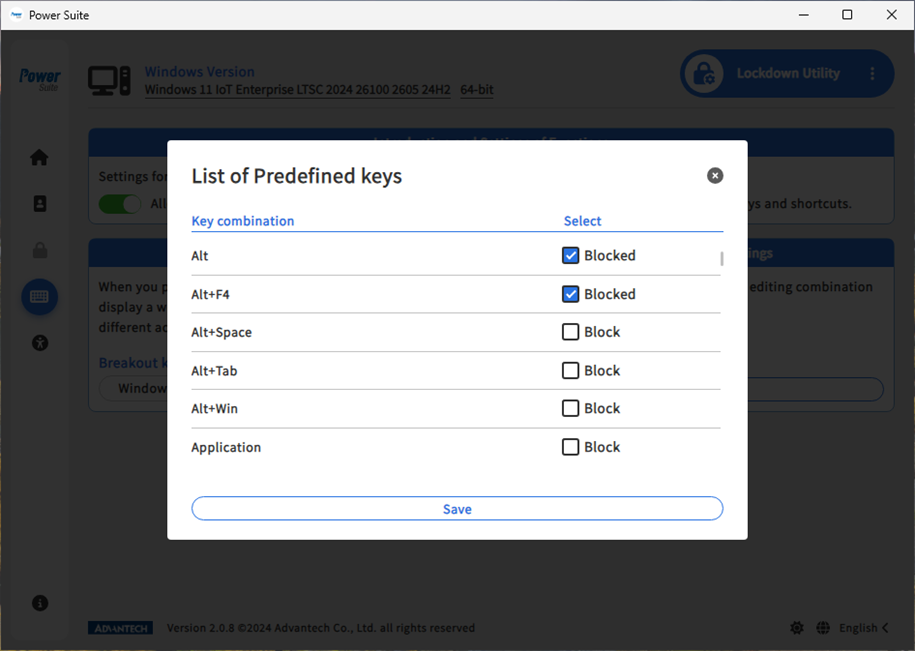
- Supports blocking specific key combinations by default (such as Ctrl+Alt+Del, Windows key, etc.), effectively preventing accidental or unauthorized operations by regular users.
5. Embedded Logon and Advanced Controls #
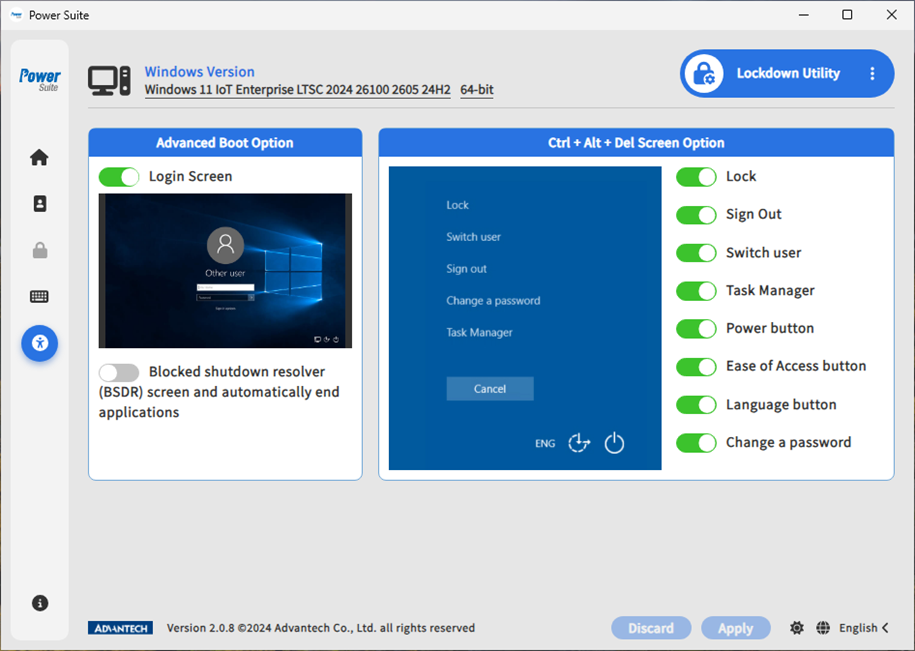
- Hide Logon Screen: Combined with automatic logon, the device boots directly into the application interface.
- BSDR Screen: Once enabled, all applications blocking shutdown or restart are forcibly closed—ideal for kiosk scenarios that require unattended operation.
- Custom Ctrl + Alt + Del: Define the function of this hotkey combination to meet different industry needs.
Experimental Results: Advantech Takes Device Protection to the Next Level! #
Through this Lockdown Utility experiment, we’ve not only proven that Advantech Power Suite can make Windows IoT devices more secure, manageable, and automated, but we’ve also drastically lowered the setup barrier—no more struggling with complicated commands. One-click operation allows application engineers, sales, and even end users to get started with ease!
Our Breakthrough Highlights: #
- Easy to Use: Graphical interface and switch design enable rapid deployment, saving significant configuration time.
- High Security: Multi-layer protection mechanisms effectively prevent data loss and unauthorized access.
- Flexible Application: Quickly adapt protection strategies for different industries and environments.
- Continuous Innovation: The Advantech team continuously optimizes and experiments, committed to further upgrading industrial security and automation!
Looking Ahead: Securely Deploy Smart Devices and Unlock Infinite Possibilities! #
As IoT and AIoT applications expand rapidly, the demand for device security and automation will only increase. Advantech will continue to deepen its expertise in this field, integrating more user feedback and cutting-edge technology to create smarter, safer, and more user-friendly software solutions. Whether you’re an engineer, application engineer, sales, or an enterprise partner considering smart device adoption, Advantech is your most trusted technology partner!
Want to learn more about Power Suite or other innovative technologies? Feel free to contact us anytime—let Advantech help you open a new chapter in smart applications!