This article has been rewritten and reorganized using artificial intelligence (AI) based on referenced technical documentation. The purpose is to present the content in a clearer and more accessible manner. For technical clarifications or further verification, readers are advised to consult the original documentation or contact relevant technical personnel.
Showcasing a New “Vision” for E-Paper to the World #
Imagine replacing your office wall with a massive 28.5-inch e-paper screen. Information displays at meeting room doors, smart signage in hospitals, and even digital showcases in retail stores can all be easily upgraded. Not only are they energy-saving and eye-friendly, but the content can be updated at any time! This isn’t a scene from a sci-fi movie—it’s the new technology that the Advantech team is actively developing and experimenting with. This time, we present the latest integration results of the Sharp 28.5-inch e-paper panel, giving you an exclusive look!
Why Is Everyone Paying Attention to E-Paper? #
E-Paper, also known as electronic ink displays, is making waves in smart retail, healthcare, and industrial signage due to its ultra-low power consumption, paper-like display, and clear visibility even under sunlight. With the rise of IoT and smart technologies, there is an increasing demand for real-time information updates and environmentally friendly solutions. Large-size e-paper panels perfectly address these needs.
But how do you connect large e-paper panels to IoT platforms? How do you quickly deploy them on site? These are the key challenges our experiment aims to solve!
Advantech Lab Spotlight: Full Record of the 28.5-Inch E-Paper Panel Deployment #
The star of this experiment is an innovative combination of the “WISE-3200 Controller” with the “Sharp 28.5-inch E-Paper Panel” and “T1000 Controller.” We designed two installation solutions to make on-site deployment more flexible and better suited to real-world needs.
Solution 1: Custom USB Connection Cable #
Hardware Checklist
- WISE-3200 Smart Controller
- Sharp 28.5-inch E-Paper Panel + T1000 Controller
- Custom USB Connection Cable (T1000 Controller ↔ WISE-3200)
- Dedicated Panel Connection Cable (T1000 Controller ↔ Panel) Details here
- USB Flash Drive
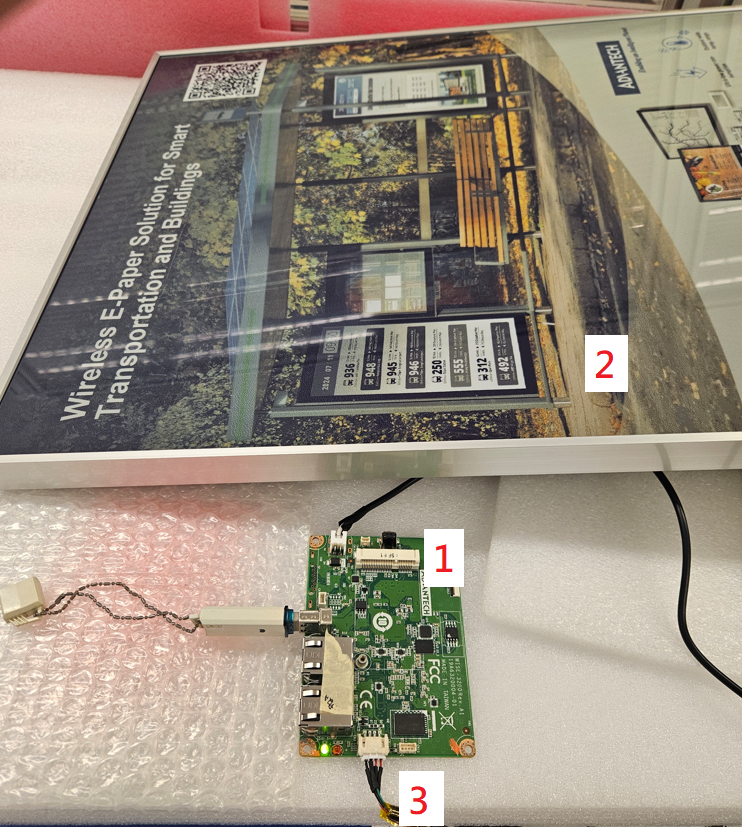
Operating Steps
- Power on the Sharp 28.5-inch panel and wait for about 10 seconds.
- Use the custom USB connection cable to connect the T1000 Controller to the WISE-3200.
- Power on the WISE-3200 and wait for about 1 minute.
- Save the demo images to the USB flash drive, then insert it into the WISE-3200.
- After about 25–30 seconds, the panel will display the first image!
Solution 2: Flexible Expansion with USB Hub #
Hardware Checklist
- WISE-3200 Smart Controller
- Sharp 28.5-inch E-Paper Panel + T1000 Controller
- USB Hub
- Standard USB Connection Cable (T1000 Controller ↔ USB Hub)
- Dedicated Panel Connection Cable (T1000 Controller ↔ Panel) Details here
- USB Flash Drive
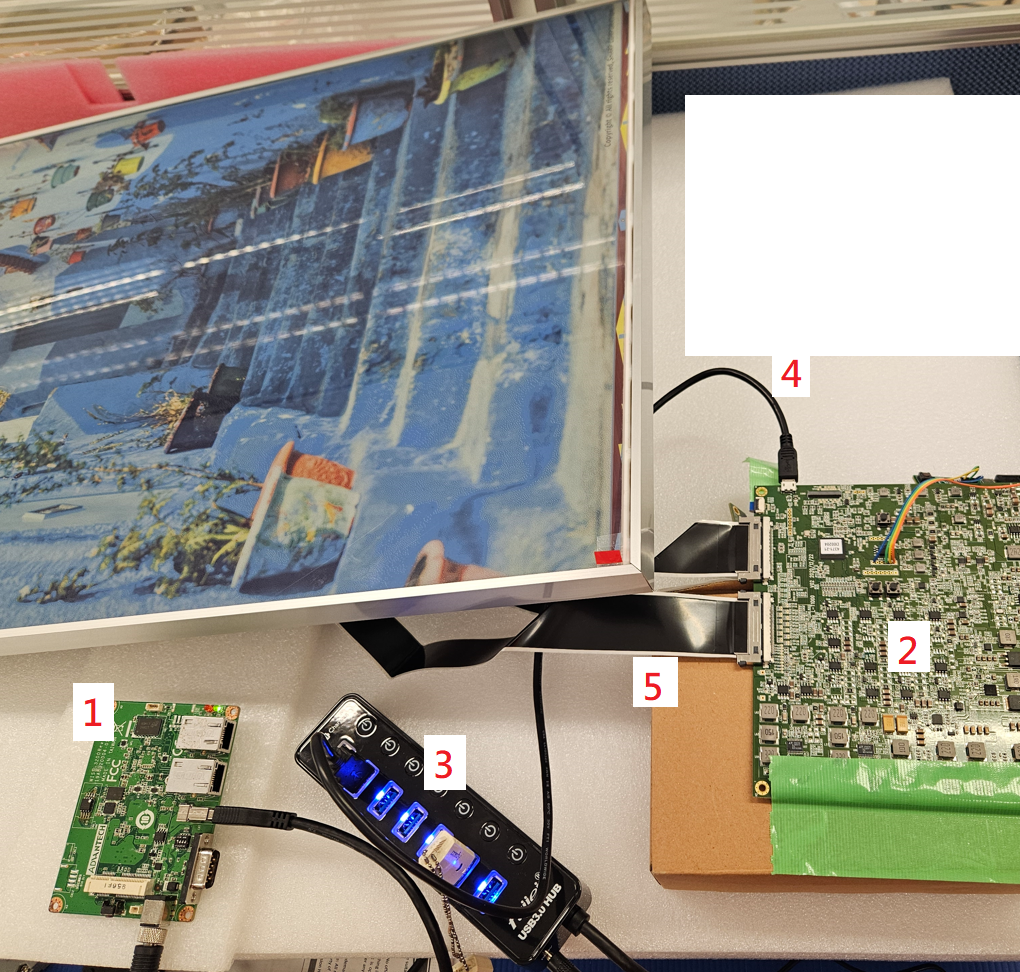
Operating Steps
- Power on the Sharp 28.5-inch panel and wait for about 10 seconds.
- Connect the T1000 Controller to the USB Hub via USB cable.
- Connect the Hub to the WISE-3200 using a USB cable.
- Power on the WISE-3200 and wait for about 1 minute.
- After saving the demo images to the USB flash drive, insert it into the Hub.
- After about 25–30 seconds, the panel will display the first image!
【Tip】This is What the Connection Cable Between the T1000 Controller and the Panel Looks Like! #
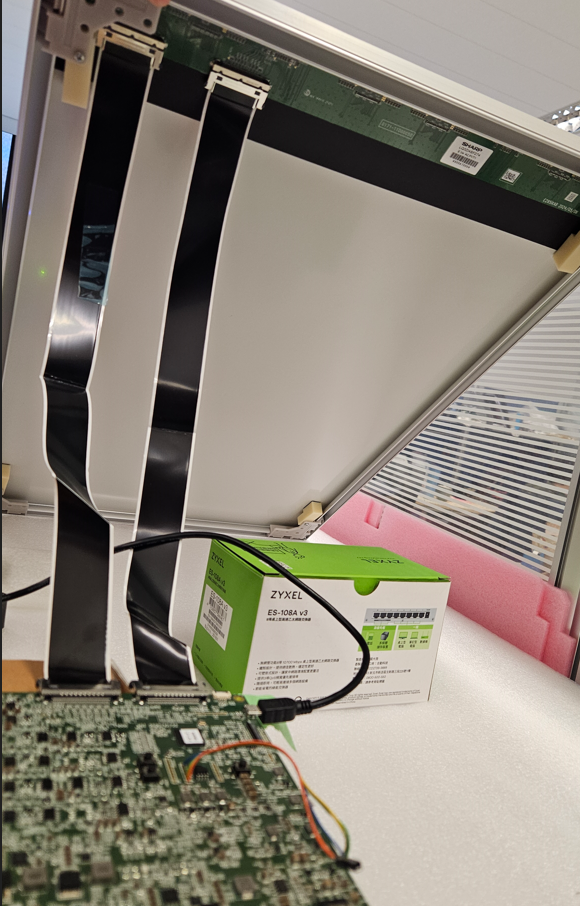
Image Conversion and Deployment Script—All in One Step #
To display images on the e-paper panel, you need to convert them to the panel’s dedicated format. Don’t worry, we’ve designed an intuitive user interface:
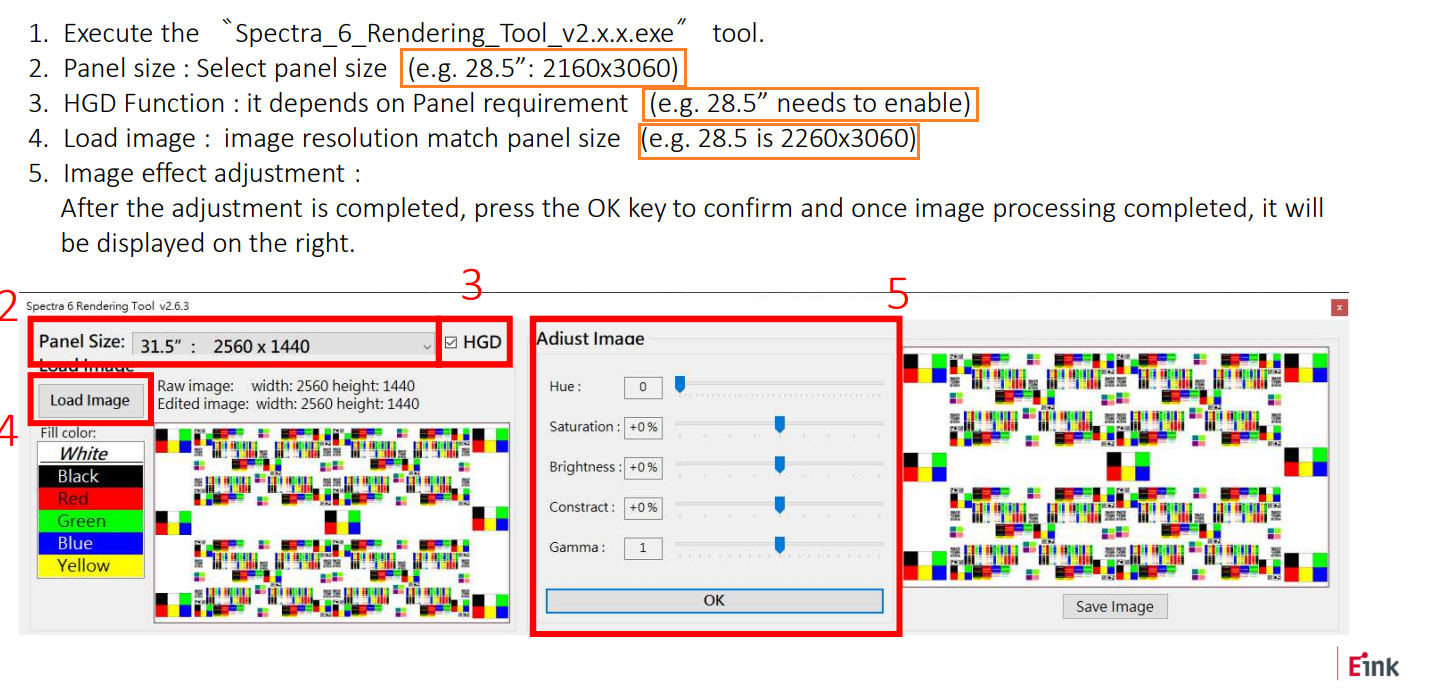
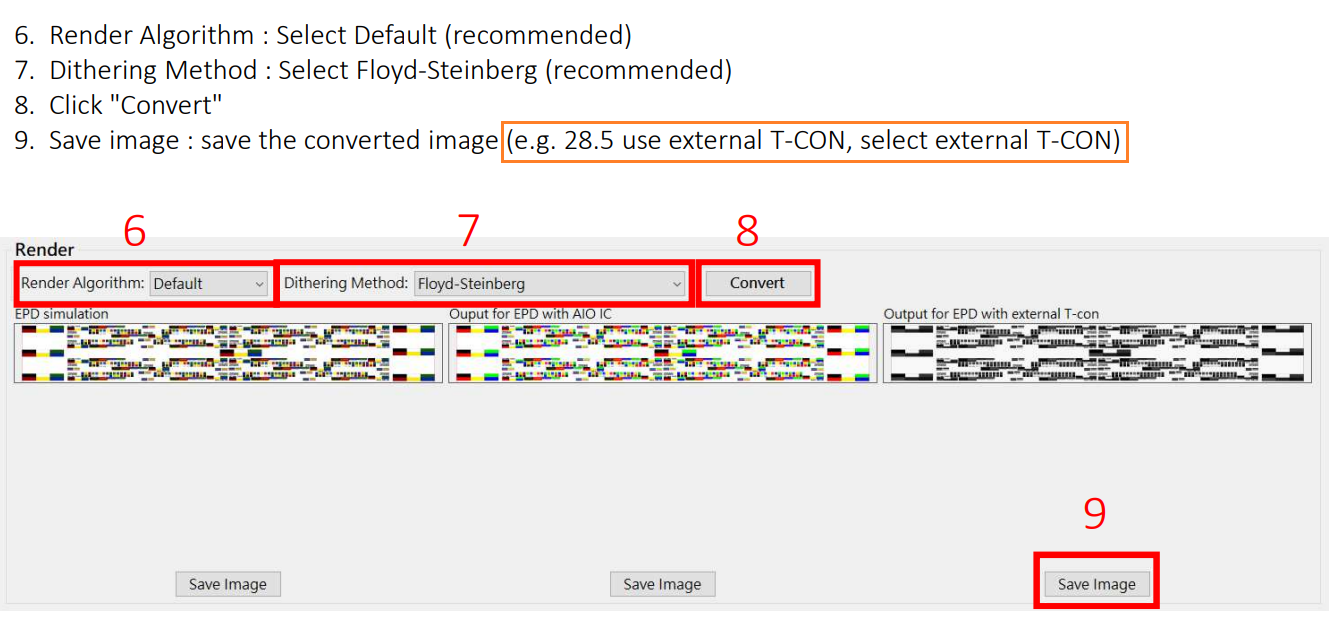
Just select the orange box option and image conversion is a breeze!
One-Click Deployment Demo Script: Smart Auto-Play on Boot #
We’ve specially packaged a fully automated script, “epd285-demo-xxxx.tar.gz,” to ensure smooth on-site deployment:
- Copy the archive to the
/tmpdirectory of WISE-3200. - Extract it to
/root; a folder namedepd285-demowill appear, containing five main files:- dpy_signage_auto: Auto-play image program
- dpy_signage: Manually configurable image display program
- usb_detect_auto_e05.sh: Script for automatic slideshow after boot
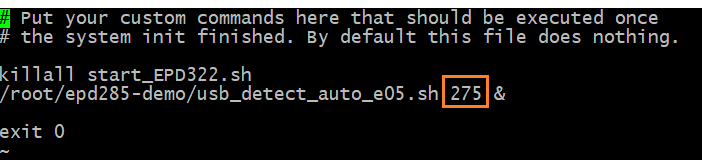
- rc.local: Boot startup script; the orange section can adjust the slideshow interval (e.g., for a 5-minute cycle, set to 275 seconds, reserving 25 seconds for image conversion)
- inittab: Disables usb2default on boot
- To have the script run automatically at system startup:
- Copy rc.local to /etc, or modify according to our provided version
- If needed, refer to inittab to disable usb2default
How to Confirm the T1000 Controller is Connected? #
Simply enter the lsusb command on the WISE-3200 to easily detect the connection status!

Innovative Achievements Illuminate a New Future for Smart Applications #
This 28.5-inch e-paper panel integration experiment not only demonstrates Advantech’s innovative strength in IoT and smart display fields, but also makes e-paper applications more flexible and intelligent. In the future, whether it’s smart offices, medical signage, retail digitalization, or smart factory data boards, everyone can enjoy the benefits of ultra-large screens, ultra-low power consumption, and flexible deployment.
Advantech Continues to Break Through, Leading New Horizons for the Industry #
We are well aware that market demands and technologies are evolving rapidly. The Advantech team will continue to focus on e-paper and smart display solutions, creating more innovative products that are field-ready and easy to maintain. In the future, you’ll see us bring more breakthroughs in multi-size e-paper, multimedia interactive displays, cloud remote management, and more!
Want to experience more innovative e-paper applications? Contact us—Advantech will work with you to create a new smart vision!