Hey everyone! Partners, business leaders, and all friends curious about Advantech technology!
When using web applications, do you occasionally encounter some “weird” situations? Clicking does nothing, the screen doesn’t load, or error messages appear? When you try to report issues to technical support or the development team, do you often find it difficult to clearly describe the situation using only text? Descriptions like “I clicked that button, and then it broke…” are like listening to gibberish for developers, making it hard to find the root cause of the problem.
Don’t worry! Today, we’re going to share a “secret weapon” of developers, a magical file format that can help us quickly pinpoint web issues and significantly improve communication efficiency—HAR (HTTP Archive) files. With this file, developers get a detailed record of web activity, clearly seeing what happened between your browser and the server, and thus quickly identifying the problem.
This is not just a tool for engineers; it’s also a microcosm of Advantech’s pursuit of excellent product quality and provision of efficient technical support. We constantly explore more efficient tools and methods to ensure we can quickly respond to and resolve issues encountered by customers, demonstrating our continuous R&D and innovation capabilities.
So, what exactly is a HAR file? And how can we obtain it to help report issues?
What is a HAR File? Why is it So Important? #
Imagine that when you open a webpage in your browser, your browser is actually having a series of “conversations” with the remote server. It sends requests (e.g., please give me the content of this page, please help me submit this data), and the server gives responses (e.g., here is the webpage content you requested, your data has been submitted). These conversations include every element loaded on the page (images, text, code), every data transfer, and any errors that might occur during the process.
A HAR file is like a complete transcript and time record of these “conversations”. It records all HTTP requests and responses during the webpage loading process, including the requested URL, data sent, server response status codes (success, failure, etc.), response content, and the time taken for each step.
When you report a web issue, relying solely on text description is like only telling the end of the story; developers don’t know what happened in between. But with a HAR file, developers can “recreate” the process where the issue occurred, seeing which request failed? Did the server not respond? Or did the browser receive incorrect data? This significantly shortens the time for problem diagnosis.
This is also why at Advantech, we encourage the use of HAR files to report web-related issues. This signifies that we adopt a professional and efficient approach to handle every technical detail, ensuring we can provide customers with the most stable and reliable products and services.
How to Obtain a HAR File? Four Simple Steps! #
Don’t think this is an operation only engineers can do! In fact, obtaining a HAR file is very simple, requiring only the browser’s built-in developer tools. Here, we’ll use Google Chrome browser as an example:
Step One: Open Your Browser’s Developer Tools
This is like opening a window that lets you peek behind the scenes of how a webpage works. You can open it through the browser menu (Menu > More Tools > Developer Tools), or by directly pressing the F12 key on your keyboard (some laptops might require Fn-F12).
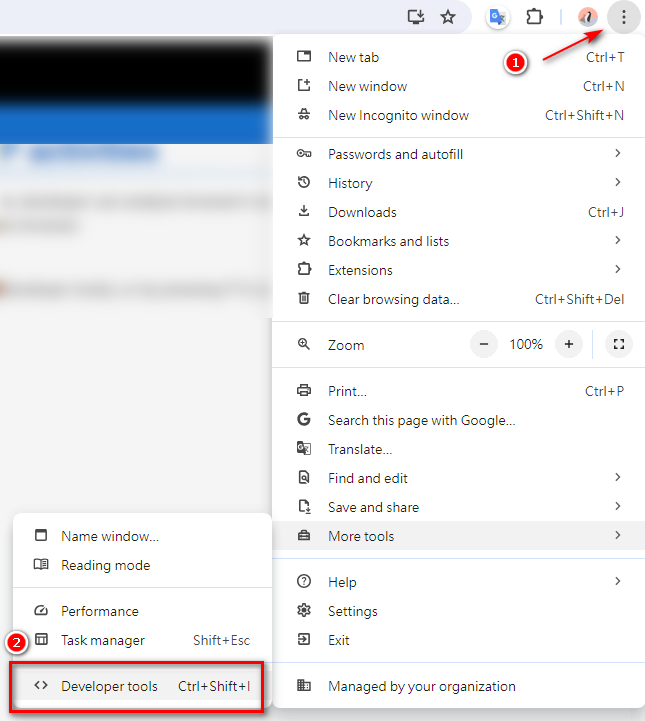
Once opened, you will usually see a new panel on the side or bottom of the browser window.
Step Two: Switch to the “Network” Tab
In the Developer Tools panel, you will see several tabs, such as Elements, Console, Sources, etc. Please click to find and switch to the Network tab. This tab is where all web communication activities are recorded.
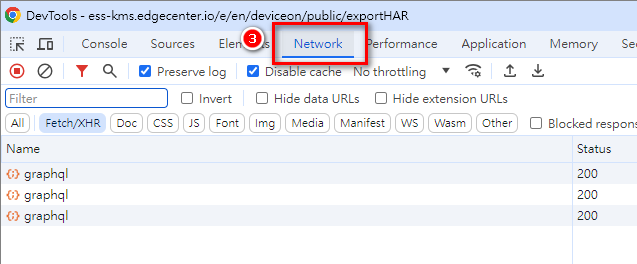
Step Three: Reproduce the Steps Where the Issue Occurs
This is the most crucial step! Now, please go back to the webpage where you encountered the issue. With the Network tab open, repeat all the steps that led to the problem. For example, if the issue occurred after clicking a certain button, please click that button again. Be sure to repeat these operations until the problem reappears on your screen.
This process will cause the Network tab to start recording all network activities.
Step Four: Export the HAR File
Once the problem has been reproduced, all network activities have been recorded. Now, right-click anywhere within the Network tab and select “Save all as HAR with content”.
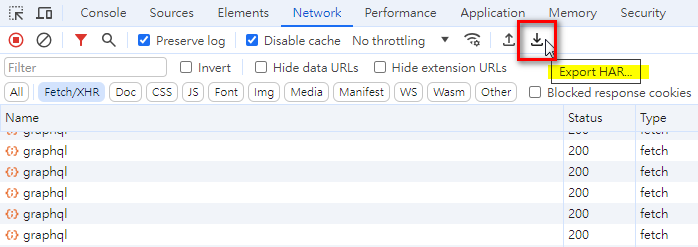
Alternatively, you can click the “down arrow” icon (Export HAR) in the toolbar above the Network tab, and then choose where to save the file.
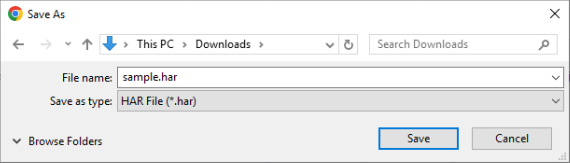
This completes the export of the HAR file! You will get a file with the .har extension.
When Reporting Issues, Please Include This Information! #
When you are ready to report an issue to Advantech’s technical support or development team, please be sure to provide the following three items:
- Detailed Scenario Description: Describe in text what issue you encountered and what abnormalities appeared on the screen.
- The HAR File You Exported: This is the “detective record” we just obtained.
- Operations to Reproduce the Issue: Clearly explain how you performed the steps one by one, ultimately leading to the issue. This helps developers reproduce the problem faster in their environment.
Results and Value: Faster Problem Resolution, Better Experience! #
By providing a HAR file, you are essentially giving developers “x-ray vision,” allowing them to directly see the critical steps where the issue occurred. Compared to relying on guesswork or constant back-and-forth questioning, diagnostic efficiency is increased several times over!
For you, this means:
- Faster Problem Resolution: Developers can find the root cause faster and release a fix.
- Smoother User Experience: Reduced time spent on troubleshooting allows you to return to normal work status faster.
- Participation in Product Optimization: Your feedback and the provided HAR file are important basis for us to improve products and enhance quality.
For Advantech, this means we can utilize R&D resources more effectively, focusing energy on solving core problems rather than spending significant time clarifying the issue itself. This is one manifestation of our continuous investment in R&D and pursuit of technological innovation—not only developing leading technical products but also optimizing internal processes and tools to ensure we provide customers with a comprehensive excellent experience from product to service.
Conclusion and Future Outlook #
A HAR file might seem like a small technical detail, but its role in diagnosing web issues is immense. Learning how to obtain and provide a HAR file allows you to become a “super teammate” when reporting issues, greatly accelerating the problem-solving process.
At Advantech, we deeply understand that technological advancement is not only reflected in the products themselves but also in how we utilize tools and optimize processes to improve efficiency and service quality. In the future, we will continue to explore more advanced technologies and methods, striving for excellence in product development, system integration, and technical support, to create greater value for our customers and partners.
Next time you encounter a web issue, why not try exporting a HAR file? These simple steps will be key to helping us solve problems faster and providing you with a better user experience!